
Most deletions work from filters like age, type or keyword. Advanced mode is different: you hand us a specific list of post ID numbers and we remove precisely those. It's the right tool when you want to hand-pick individual posts, or when you need something the standard filters don't cover (for example, everything between two exact dates).
Every post has a unique numeric ID, and there are two easy ways to collect the ones you need.
Finding an ID on X
Open a single post on X in your browser and look at the address bar — the long number at the very end of the URL is that post's ID. For example, in x.com/yourname/status/1699… the bold number is what you want.
On the X mobile apps, tap the share icon on a post and choose Copy link to get the same URL, then read the ID from the end of it.
Our Advanced form expects the ID number on its own — just the digits, not the whole URL. If you copied a full link, keep only the number at the end.
Finding IDs after uploading your archive
If you want to work through a lot of posts — including older ones that are awkward to dig up on X — it's easier to upload your X data filefirst. Once it's processed, use the View tweets button on the Upload page to browse your full history. Each entry lists its ID right alongside the post, so you can pick out exactly the ones you want to remove.

Running the deletion
Go to the Advanced page and paste your IDs into the box, one per line. Deletions always run against your own connected account, so the handle is filled in for you.
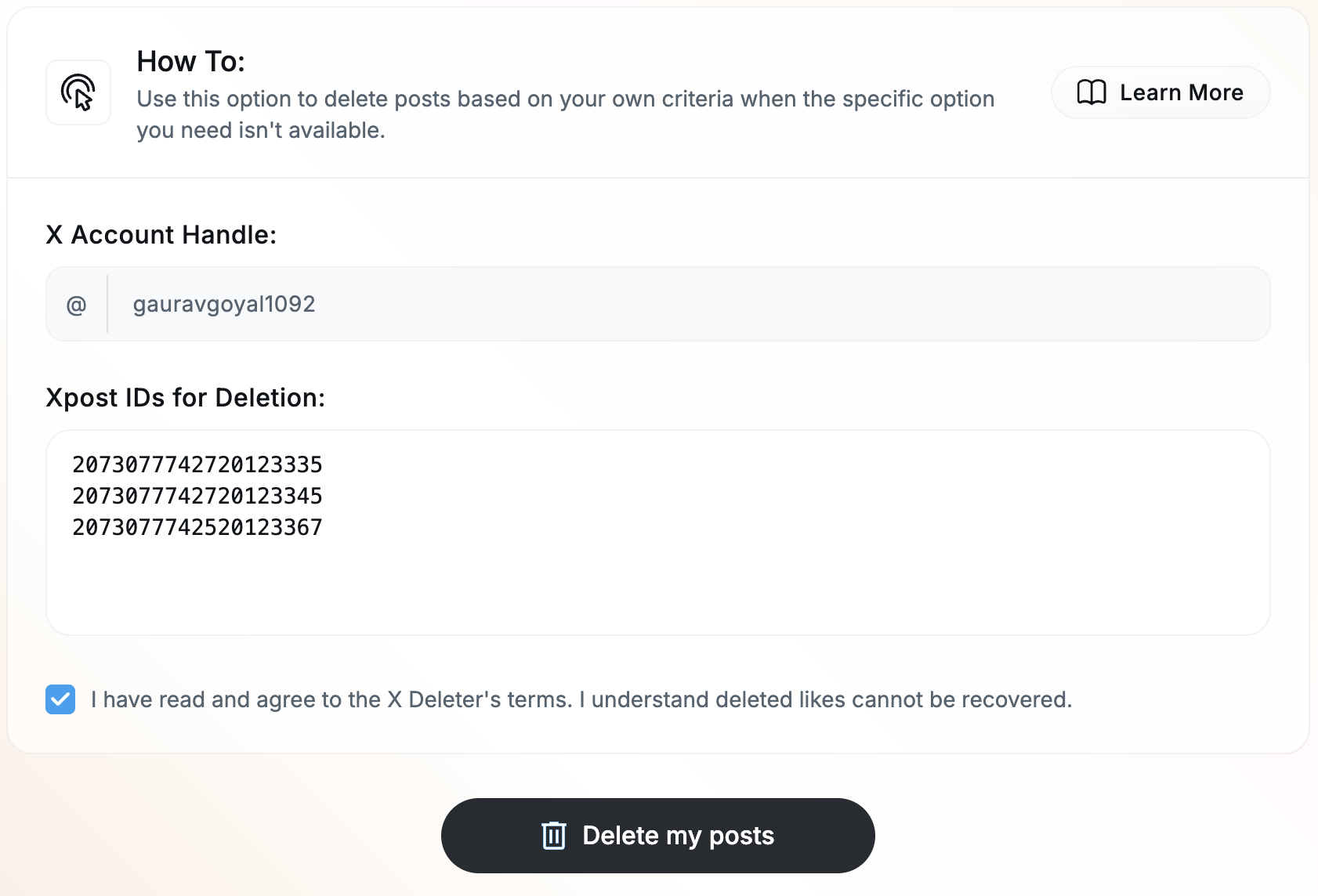
Tick the confirmation box and start the deletion, and we'll remove every post whose ID you listed. Only paste IDs you actually want gone — there's no undo once a post is deleted.